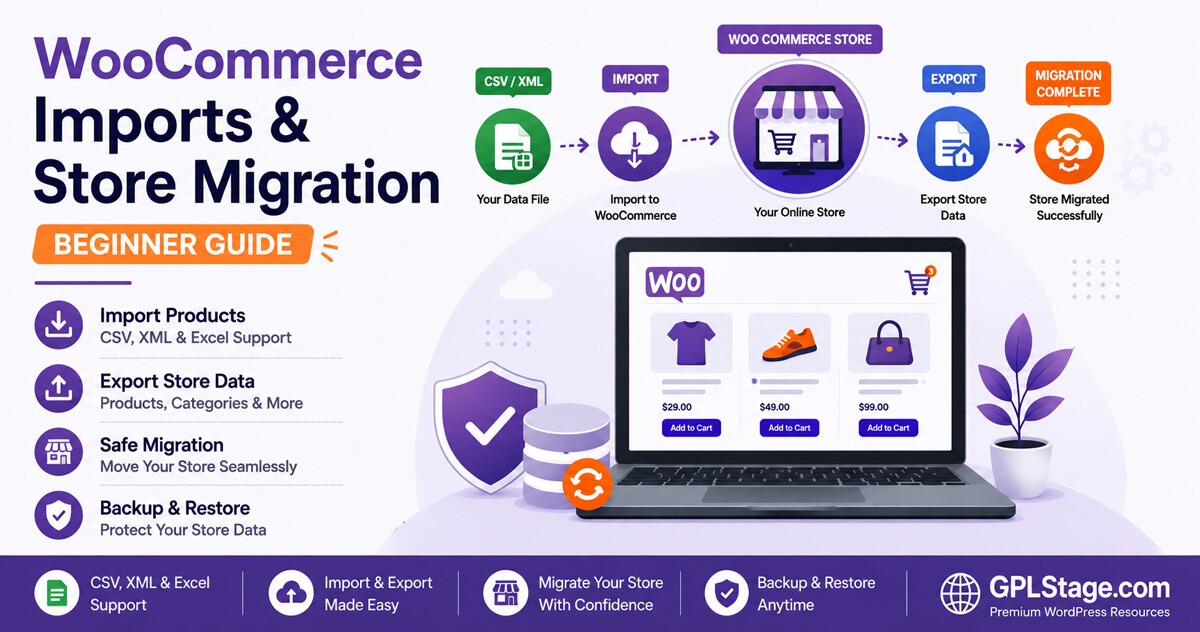
Launching a WooCommerce store is exciting, but as your catalog grows, manually managing products becomes increasingly difficult. Whether you’re importing supplier products, migrating to a new website, creating backups, or moving an existing store to a different hosting provider, understanding how WooCommerce imports and exports work is an essential skill for every store owner.
Unfortunately, many beginners approach imports and migrations without a clear process. They may upload a large CSV file without testing it first, migrate products without creating backups, or assume every import tool works exactly the same way. These mistakes can lead to duplicate products, missing images, broken categories, or even lost store data.
The good news is that WooCommerce imports and exports are much easier to understand once you learn the fundamentals.
In this beginner-friendly WooCommerce migration tutorial, you’ll learn:
- What WooCommerce imports and exports actually do
- The difference between CSV and XML files
- How to export WooCommerce products safely
- Why backups are essential before migrations
- Common WooCommerce migration scenarios
- How to prepare for a successful store migration
- Beginner mistakes to avoid
- Best practices for first-time users
By the end of this guide, you’ll understand how WooCommerce product imports, exports, and migrations work together—and how to approach them confidently without risking your store data.
Beginner Tip: Always test imports and migrations on a staging website whenever possible before applying changes to your live store.
What Are WooCommerce Imports?
A WooCommerce import is the process of bringing external data into your store using a file or data source.
Instead of manually creating products one at a time, WooCommerce can read information from a structured file and automatically create or update store data.
Depending on the import tool being used, WooCommerce stores can import:
- Products
- Product variations
- Categories
- Attributes
- Customers
- Orders
- Coupons
- Reviews
- Custom fields and metadata
For example, if a supplier provides a catalog containing 5,000 products, manually entering every product could take days or weeks. Importing the file can create those products automatically in a fraction of the time.
If you’re planning to import a large catalog, see our guide on How to Import Thousands of WooCommerce Products Using CSV, XML & Excel Files for a complete step-by-step walkthrough.
Common WooCommerce Import Scenarios
Store owners frequently use imports for:
- Launching a new online store
- Importing supplier product feeds
- Updating inventory in bulk
- Migrating products between websites
- Updating prices across large catalogs
- Synchronizing inventory management systems
- Importing customer or order data from another platform
The larger your store becomes, the more valuable import functionality becomes.
Why Imports Are Important for Growing Stores
Many beginners only think about imports during a migration project.
In reality, imports are useful for ongoing store management.
For example:
Inventory Updates
Instead of editing hundreds of products manually, you can update stock quantities using a spreadsheet and re-import the file.
Seasonal Price Changes
If you need to adjust pricing across hundreds of products, importing updated product data is often faster than editing products individually.
Supplier Catalog Synchronization
Many suppliers provide regularly updated product feeds that can be imported into WooCommerce to keep pricing and availability current.
Multi-Store Operations
Businesses operating multiple WooCommerce stores often use imports to keep catalogs synchronized across websites.
What Are WooCommerce Exports?
Exports perform the opposite function of imports.
Instead of bringing data into WooCommerce, exports create downloadable files containing your store information.
These files can then be:
- Archived
- Edited offline
- Imported into another website
- Used for reporting
- Shared with suppliers
- Stored as backups
Think of exports as creating a portable copy of your WooCommerce data.
Why Exports Matter
Exports are useful even if you’re not planning a migration.
Examples include:
Creating Product Backups
Exporting product data provides an additional layer of protection before major updates.
Auditing Product Information
Store owners can review prices, SKUs, categories, and inventory levels using spreadsheet software.
Preparing for Store Redesigns
Many businesses export product catalogs before rebuilding or redesigning their websites.
Sharing Data With Third Parties
Suppliers, distributors, and marketing teams often require access to product information in spreadsheet format.
Understanding WooCommerce Export Capabilities
WooCommerce includes a built-in product export tool that allows store owners to export product information as CSV files.
However, additional plugins may be required when exporting:
- Orders
- Customers
- Coupons
- Subscriptions
- Reviews
- Custom metadata
Understanding this distinction helps you choose the right solution for your specific migration or reporting needs.
Understanding CSV and XML Files
One of the first challenges beginners encounter is understanding file formats.
The two most common WooCommerce import formats are:
- CSV
- XML
Although both formats can store product information, they serve slightly different purposes.
What Is a CSV File?
CSV stands for:
Comma-Separated ValuesCSV files organize information into rows and columns similar to spreadsheets.
Example:
| Product Name | SKU | Price |
|---|---|---|
| Blue T-Shirt | BLU-001 | 19.99 |
| Black T-Shirt | BLK-001 | 19.99 |
Because CSV files resemble spreadsheets, they are easy for most store owners to understand and edit.
Benefits of CSV Files
✔ Easy to read
✔ Easy to edit
✔ Compatible with Excel and Google Sheets
✔ Supported by WooCommerce
✔ Beginner-friendly
CSV files are the most commonly used WooCommerce import format for product management and migrations.
What Is an XML File?
XML stands for:
Extensible Markup LanguageUnlike spreadsheets, XML files organize information using structured tags.
Example:
<Product>
    <Name>Blue T-Shirt</Name>
    <SKU>BLU-001</SKU>
    <Price>19.99</Price>
</Product>
XML files are often used by:
- Suppliers
- ERP systems
- Inventory platforms
- Enterprise integrations
- Automated product feeds
While XML offers greater flexibility, it is generally less beginner-friendly than CSV.
CSV vs XML: Which Should Beginners Choose?
For most new WooCommerce users, CSV files are the simplest place to start.
The following comparison highlights the differences:
| Feature | CSV | XML |
|---|---|---|
| Easy to Edit | ✔ | ✖ |
| Spreadsheet Compatible | ✔ | ✖ |
| Beginner Friendly | ✔ | ✖ |
| Human Readable | ✔ | Partial |
| Complex Product Structures | Limited | ✔ |
| Supplier Feed Usage | Sometimes | ✔ |
| WooCommerce Compatibility | ✔ | ✔ |
Recommended Starting Point
If you’re performing your first WooCommerce import or migration:
Choose CSV whenever possible.
CSV files are easier to validate, troubleshoot, and modify without specialized technical knowledge.
How to Export WooCommerce Products
Before importing products or migrating a store, it’s a good idea to create a product export.
Exports provide:
- Backup protection
- Product validation
- Easier troubleshooting
- Recovery options if something goes wrong
Step 1: Open the Products Section
Navigate to:
Products → All Productsinside your WordPress dashboard.
Step 2: Select Export
WooCommerce includes a built-in export option for products.
Click:
Exportto begin creating an export file.
Step 3: Choose Export Options
Depending on your requirements, you can export:
- All products
- Specific categories
- Selected columns
- Product variations
- Custom product fields (when supported)
Step 4: Generate the Export File
WooCommerce creates a downloadable CSV file containing your selected product data.
Store this file safely before performing major updates or migrations.
Why Backups Matter Before Imports and Migrations
One of the most common beginner mistakes is assuming an import can always be reversed easily.
Unfortunately, mistakes can affect:
- Product pricing
- Inventory quantities
- Product images
- Categories
- Attributes
- Product variations
A proper backup provides a recovery option if unexpected problems occur.
Understanding Product Images During Migration
One of the most common surprises during a WooCommerce migration is discovering that products have been transferred successfully, but images are missing.
This happens because product information and media files are often stored separately.
When migrating a store, make sure both of the following are transferred correctly:
– Product data
– Media uploads
Common image migration issues include:
– Missing thumbnails
– Broken gallery images
– Incorrect image URLs
– Incomplete media transfers
Before launching a migrated store, review several product pages and verify that:
✔ Featured images appear correctly
✔ Product galleries load properly
✔ Image thumbnails generate successfully
✔ Image URLs resolve without errors
Checking images early can prevent hundreds of broken product pages after launch.
Recommended Backup Checklist
Before performing any import, export, or migration, verify the following:
✔ Database backup completed
✔ Uploads folder backed up
✔ Product export generated
✔ Customer data protected
✔ Plugin settings documented
✔ Staging environment available
✔ Test import performed
Following this checklist dramatically reduces risk during migrations.
WooCommerce Migration Checklist
Use the following checklist before moving products or migrating an entire store:
| Task | Recommended |
|---|---|
| Backup Database | ✔ |
| Backup Uploads Folder | ✔ |
| Export Products | ✔ |
| Create Staging Site | ✔ |
| Test Import Process | ✔ |
| Verify Product Images | ✔ |
| Verify Categories | ✔ |
| Verify Product Variations | ✔ |
| Review URLs and Permalinks | ✔ |
| Monitor Errors After Launch | ✔ |
Completing these tasks before migration can prevent many of the issues commonly encountered by first-time WooCommerce users.
Common Types of WooCommerce Migrations
Not every migration project is the same.
Understanding the type of migration you’re performing helps determine the best workflow.
Hosting Migration
Moving an existing WooCommerce store from one hosting provider to another.
Common reasons include:
- Better performance
- Lower costs
- Improved support
- Scalability requirements
Website Redesign Migration
Launching a redesigned WooCommerce store while preserving existing products and customer experience.
Development-to-Live Migration
Moving a staging or development website into production.
This is a common workflow for agencies and developers.
Multi-Store Consolidation
Combining products and data from multiple WooCommerce stores into a single website.
Platform Migration
Moving products from another e-commerce platform into WooCommerce.
Examples include:
- Shopify
- Magento
- OpenCart
- PrestaShop
Typical WooCommerce Migration Timeline
For most small and medium-sized WooCommerce stores, a migration project follows a predictable sequence:
| Stage | Primary Goal |
|---|---|
| Planning | Define migration scope and identify data that needs to be transferred |
| Backup Creation | Create full backups of the database, files, and store assets |
| Export Data | Generate export files for products and other required store data |
| Test Import | Validate the migration process in a staging environment |
| Full Migration | Transfer products, images, and store data to the destination site |
| Verification | Check products, images, categories, variations, and functionality |
| Launch | Publish the migrated store and make it available to customers |
| Monitoring | Review logs, monitor performance, and identify post-launch issues |
Simplifying WooCommerce Imports and Migrations
Want an easier way to achieve this? You can use Import Export Suite for WooCommerce to simplify the process and build professional results faster. Learn more here:
https://gplstage.com/webtoffee-import-export-suite-for-woocommerce/
Whether you’re importing products, exporting catalog data, migrating stores, or managing recurring product updates, using a dedicated WooCommerce import/export solution can simplify workflows and reduce manual effort.
Important: Never delete the original store immediately after completing a migration.
Keep backups available and verify products, categories, customer accounts, images, checkout functionality, and inventory data before retiring the old environment.
Maintaining temporary access to the original store provides a valuable fallback if unexpected issues are discovered after launch.
How to Migrate a WooCommerce Store Safely
A successful WooCommerce migration is less about the import itself and more about preparation.
Most migration problems occur because store owners skip testing, backups, or data validation.
Following a structured process significantly reduces risk and makes troubleshooting easier if issues occur.
Step 1: Create Full Website Backups
Before migrating anything, create backups of:
- WordPress database
- Uploads folder
- Themes
- Plugins
- Product exports
- Customer data (if applicable)
A complete backup allows you to restore the store if something unexpected happens during the migration.
Step 2: Export Store Data
Export the information you plan to migrate.
Depending on your project, this may include:
- Products
- Categories
- Attributes
- Customers
- Orders
- Coupons
- Reviews
Even if you’re using a full-site migration solution, having separate exports provides an additional recovery option.
Step 3: Prepare the Destination Store
Before importing data, ensure the destination website is ready.
Install:
- WordPress
- WooCommerce
- Required plugins
- Payment gateways
- Shipping configurations
A properly prepared environment reduces import conflicts later.
Step 4: Import Product Data
Start with a small test import.
For example:
5–10 productsVerify:
- Images
- Prices
- Categories
- Attributes
- Variations
Only proceed with the full import after confirming everything works correctly.
If you encounter problems during testing, our troubleshooting guide on WooCommerce Import Failed? Common Import Errors and How to Fix Them covers the most common CSV, SKU, image, and server-related import issues.
Step 5: Verify Imported Data
After importing, review:
✔ Product images
✔ Product descriptions
✔ Categories
✔ Attributes
✔ Inventory quantities
✔ Product variations
✔ URLs
✔ Product pricing
Many migration issues are easier to fix immediately than weeks later.
Step 6: Test Store Functionality
Before launching the migrated store:
- Browse products
- Test search functionality
- Add products to the cart
- Complete a test checkout
- Verify account creation
- Check mobile responsiveness
A successful migration should preserve both data and customer experience.
Choosing the Right Import Plugin
WooCommerce includes basic import and export functionality, but every store has different requirements.
The best solution depends on the complexity of your workflow.
If you’re comparing popular WooCommerce import solutions, read our detailed comparison of Import Export Suite vs WP All Import: Which WooCommerce Import Plugin Is Better? to understand how the two plugins differ in real-world WooCommerce workflows.
When WooCommerce Core Is Enough
WooCommerce’s built-in importer is often sufficient for:
- Small product catalogs
- Simple CSV imports
- Basic product migrations
- One-time product uploads
For beginners managing a small store, the built-in tools may be all that’s required.
When You Need Advanced Import Features
Larger stores often need:
- Scheduled imports
- XML support
- Customer imports
- Order migrations
- Advanced filtering
- Bulk updates
- Supplier feed synchronization
- Automation workflows
These capabilities typically require a dedicated WooCommerce import/export plugin.
Features Worth Looking For
When evaluating an import plugin, consider:
Ease of Use
Look for:
- Guided setup
- Clear field mapping
- Import previews
- Validation tools
Beginner-friendly interfaces reduce mistakes significantly.
File Format Support
Modern workflows often require support for:
- CSV
- XML
- TSV
- XLSX
Broader format compatibility increases flexibility.
Example of a Dedicated WooCommerce Import/Export Solution
As WooCommerce stores grow, managing product imports, exports, inventory updates, and store migrations often becomes more complex. While WooCommerce’s built-in tools can handle basic product imports and exports, larger stores may benefit from a dedicated solution that supports additional data types, advanced filtering, automation, and multiple file formats.
For example, Import Export Suite for WooCommerce is designed to help store owners manage product data, customer records, orders, categories, attributes, and other WooCommerce information through a single import/export workflow. Features such as scheduled imports and exports, support for CSV and XML files, and advanced data filtering can be particularly useful for stores that regularly update catalogs or migrate data between environments.
Learn more about Import Export Suite for WooCommerce:
https://gplstage.com/webtoffee-import-export-suite-for-woocommerce/
If you’re still researching available solutions, our roundup of the 6 Best WooCommerce Import Export Plugins for Large Online Stores compares the most popular tools for product imports, exports, automation, and large-scale store management.
Scheduling and Automation
Automation can help:
- Synchronize supplier feeds
- Update inventory automatically
- Export reports on schedule
- Maintain multiple stores
For growing businesses, automation quickly becomes valuable.
WooCommerce Data Coverage
Some plugins only handle products.
Others support:
- Products
- Variations
- Customers
- Orders
- Coupons
- Reviews
- Custom fields
Always verify compatibility with your specific migration requirements.
Common Beginner Mistakes to Avoid
Many WooCommerce migration problems are entirely preventable.
Understanding common mistakes can save hours of troubleshooting later.
Skipping Backups
This remains the most common mistake.
Always create backups before:
- Imports
- Exports
- Migrations
- Bulk updates
A backup is your safety net.
Importing Large Catalogs Immediately
Beginners often attempt to import thousands of products without testing first.
Instead:
- Import 5–10 products
- Verify results
- Increase gradually
This approach makes troubleshooting much easier.
Ignoring Product Images
Many imports appear successful until you discover missing product images.
Before importing:
- Verify image URLs
- Test image accessibility
- Review image permissions
Image problems are among the most common migration issues.
Using Duplicate SKUs
WooCommerce relies heavily on SKU identifiers.
Duplicate SKUs can cause:
- Update conflicts
- Incorrect inventory changes
- Product mismatches
Maintain a consistent SKU structure.
Skipping Data Validation
Review:
- Prices
- Categories
- Attributes
- Product names
- Variations
before importing.
Small errors can affect hundreds of products.
Making Changes Directly on a Live Store
Whenever possible:
- Use a staging environment
- Test imports safely
- Verify results before launch
This reduces risk for both store owners and customers.
Recommended Workflow for First-Time Users
If you’ve never imported products or migrated a WooCommerce store before, this workflow provides a safe starting point.
1. Export Existing Products
Create a product export before making changes.
This provides a recovery option if needed.
2. Create Full Website Backups
Protect:
- Database
- Media library
- Plugins
- Themes
before proceeding.
3. Review Product Data
Validate:
- SKUs
- Prices
- Categories
- Images
- Variations
before importing.
4. Perform a Small Test Import
Start with:
5–20 productsinstead of importing the entire catalog immediately.
For larger catalogs and advanced file formats, see our tutorial on How to Import Thousands of WooCommerce Products Using CSV, XML & Excel Files.
5. Verify Imported Results
Check:
- Images
- Product pages
- Inventory
- Categories
- Variations
for accuracy.
6. Complete the Full Migration
Once testing succeeds, proceed with the complete import.
Monitor logs throughout the process.
7. Perform Post-Migration Testing
After migration:
- Review product pages
- Test navigation
- Verify checkout functionality
- Confirm inventory accuracy
- Check search results
This final review helps catch issues before customers encounter them.
Frequently Asked Questions
What is the easiest way to import WooCommerce products?
For beginners, importing products using a properly formatted CSV file is typically the easiest approach because CSV files are simple to edit and widely supported.
What is the difference between importing and exporting?
Imports bring data into WooCommerce, while exports create downloadable files containing existing store data.
Can I migrate my WooCommerce store without losing products?
Yes. Creating backups, exporting product data, and testing the migration before launch significantly reduces the risk of data loss.
Should I use CSV or XML for product imports?
Most beginners should start with CSV files. XML is often used for supplier feeds and more complex integrations.
Does WooCommerce export customers and orders by default?
WooCommerce includes built-in product export functionality. Exporting customers, orders, subscriptions, and other store data may require additional plugins depending on your requirements.
How many products can WooCommerce import?
There is no fixed limit. The practical limit depends on server resources, hosting configuration, image processing requirements, and the import method being used.
Is a staging site necessary?
It’s not mandatory, but using a staging environment is strongly recommended because it allows testing imports and migrations without affecting your live store.
Conclusion
Understanding WooCommerce imports and exports is one of the most valuable skills for managing a growing online store. Whether you’re importing supplier products, migrating to a new host, exporting product data for reporting, or launching a redesigned website, the principles remain the same: prepare carefully, create backups, validate data, and test before making large-scale changes.
For beginners, CSV files usually provide the simplest entry point into WooCommerce imports, while XML files become more useful as integrations become more advanced. Regardless of the format you use, a structured workflow helps reduce errors and improves migration success.
As your store grows, imports and exports become more than occasional tasks—they become essential tools for inventory management, automation, backups, reporting, and store scalability.
Simplify Your WooCommerce Import Workflow
If you want to build a professional website more efficiently, Import Export Suite for WooCommerce can help streamline the entire process. Check out the full product details here:
https://gplstage.com/webtoffee-import-export-suite-for-woocommerce/
Whether you’re importing products, exporting catalog data, migrating stores, or automating recurring updates, having the right WooCommerce import/export tools can make store management significantly easier.