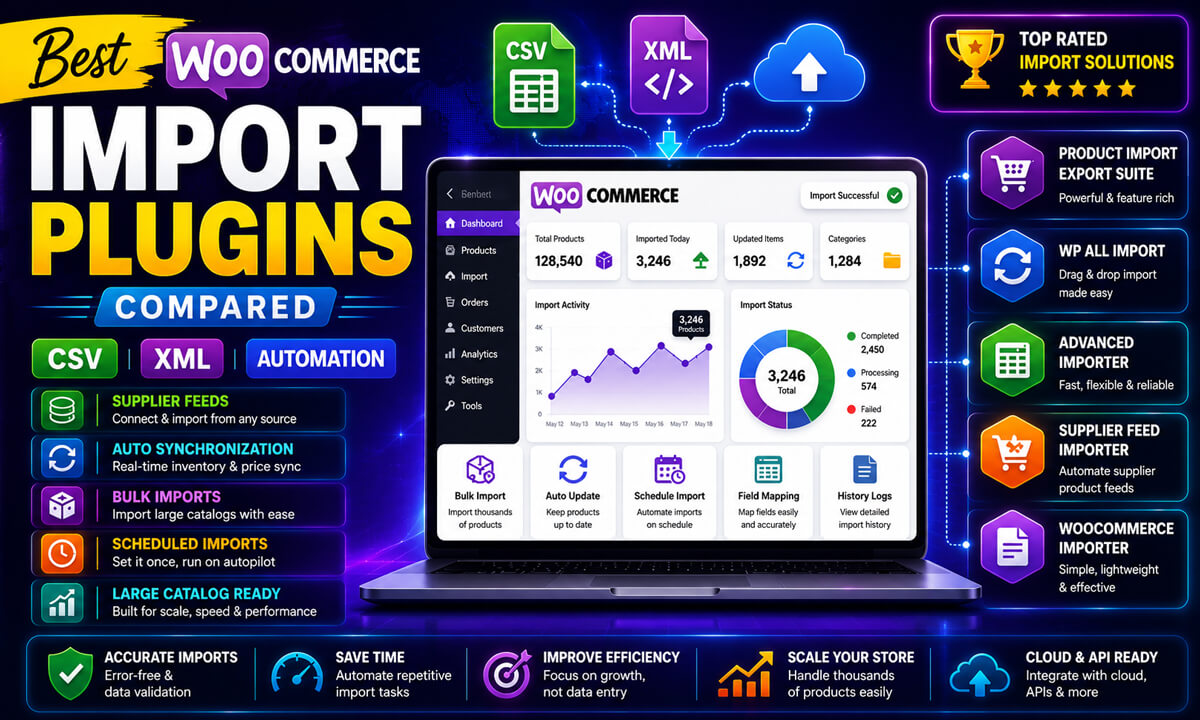
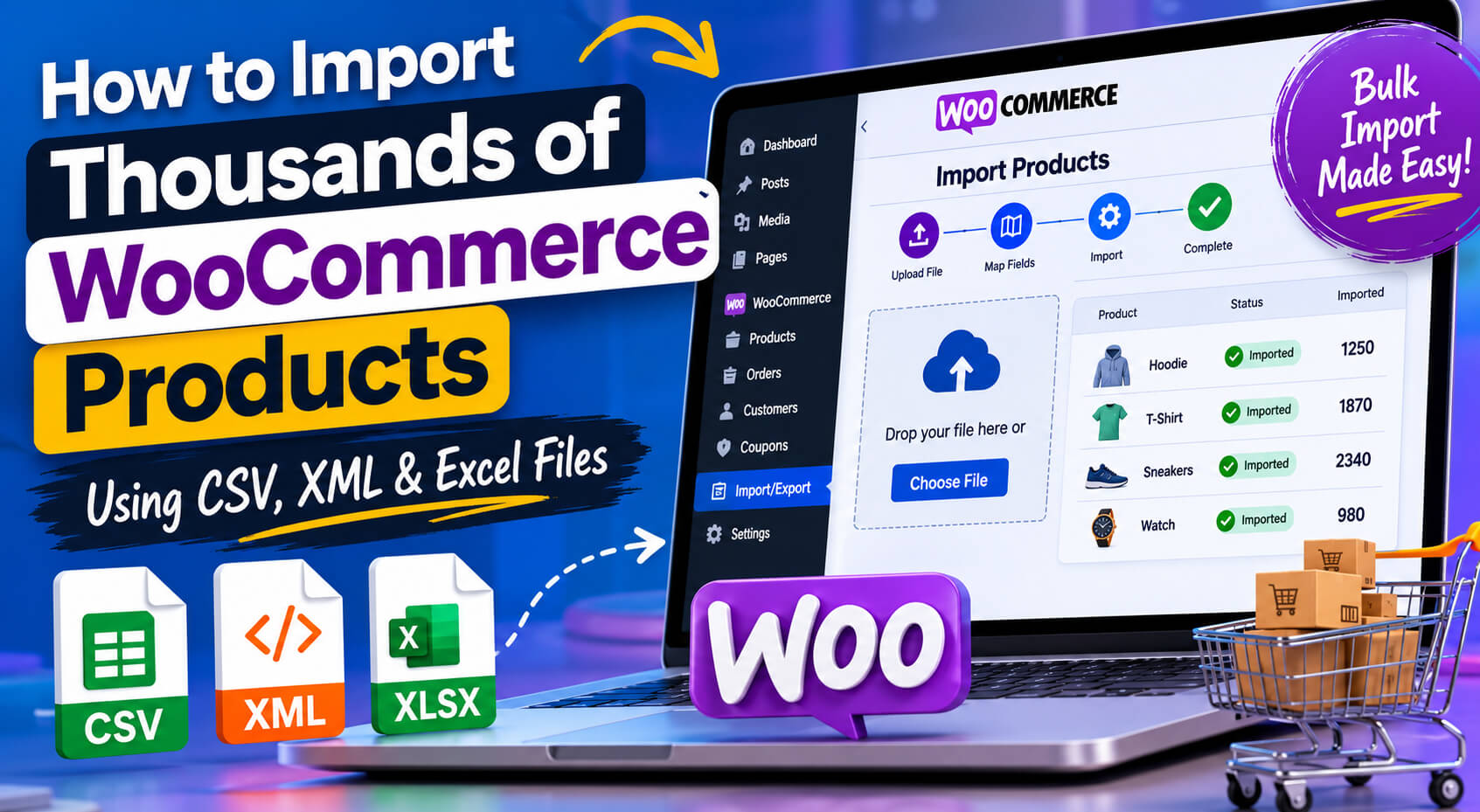
Managing a large WooCommerce store becomes nearly impossible if you add products manually one by one. Whether you run a dropshipping business, a wholesale catalog, a digital marketplace, or a fast-growing eCommerce store, bulk importing products is one of the most important workflows you’ll need to master.
In this WooCommerce product import tutorial, you’ll learn how to import products using CSV, XML, and Excel files efficiently while avoiding common issues like broken SKUs, missing images, duplicate products, and incorrect category mapping.
You’ll also discover performance optimization techniques for large stores and best practices that help keep your WooCommerce database clean and search-engine friendly.
How Do You Import WooCommerce Products?
To import WooCommerce products, prepare a properly formatted CSV, XML, or Excel file containing product data such as names, SKUs, prices, categories, stock information, and images. Upload the file through WooCommerce or an import plugin, map fields correctly, test a small batch, and then run the full import while monitoring for errors.
| Step | Goal |
|---|---|
| Prepare File | Clean product data |
| Validate SKUs | Avoid duplicates |
| Map Fields | Match WooCommerce columns |
| Test Import | Check a small sample |
| Import in Batches | Reduce timeout risk |
| Verify Products | Check images, prices, categories |
Why Bulk Product Import Matters in WooCommerce
Bulk importing products helps you:
- Save hours of manual work
- Launch stores faster
- Sync supplier catalogs efficiently
- Update inventory in batches
- Maintain consistent product data
- Scale WooCommerce stores more effectively
WooCommerce includes a built-in CSV importer, but larger stores often need more advanced functionality like XML imports, scheduled imports, image syncing, and custom field mapping.
That’s where professional import tools become extremely useful.
Understanding WooCommerce Import File Formats
Before importing products, it’s important to understand the strengths and limitations of each file format.
CSV vs XML vs XLSX Comparison
| Format | Best For | Advantages | Limitations |
|---|---|---|---|
| CSV | Standard WooCommerce imports | Lightweight, fast, supported natively | Limited hierarchical structure |
| XML | Supplier feeds & complex data | Handles nested product data well | Requires advanced mapping |
| XLSX (Excel) | Human-friendly editing | Easier for non-technical users | Usually requires conversion/plugins |
CSV Files
CSV is the most commonly used format for WooCommerce product imports because it’s lightweight and easy to process.
Ideal use cases:
- Simple products
- Inventory updates
- Price changes
- Bulk product uploads
XML Files
XML is commonly used by suppliers, ERP systems, and dropshipping platforms because it supports more complex product structures.
Best for:
- Variable products
- Nested attributes
- Supplier feeds
- Automated syncing
Excel Files (XLSX)
Excel files are easier to manage manually and are popular among store owners who edit catalogs regularly.
They’re especially useful for:
- Bulk editing
- Team collaboration
- Managing product attributes visually
Preparing Import Files Correctly
A properly formatted file prevents most WooCommerce import errors.
Essential WooCommerce Product Fields
Your import file should include:
- Product Name
- SKU
- Price
- Description
- Short Description
- Categories
- Product Images
- Stock Status
- Product Type
For variable products, you’ll also need:
- Parent SKU
- Attributes
- Variation Prices
- Variation Images
Use Unique SKUs
Every product should have a unique SKU to avoid duplicate imports and synchronization problems.
Bad example:
SKU-001
SKU-001
Good example:
TSHIRT-BLACK-M
TSHIRT-BLACK-L
Optimize Product Images First
Large image files can slow imports dramatically.
Recommended:
- Compress images before importing
- Use WebP where possible
- Host images on a fast server or CDN
- Keep filenames clean and readable
Keep Categories Consistent
Avoid category duplication caused by inconsistent naming.
Bad:
- Men Shirts
- Men’s Shirts
- mens-shirts
Good:
- Men’s Shirts
WooCommerce Import Checklist
✔ Validate file formatting
✔ Confirm unique SKUs
✔ Verify category names
✔ Check image URLs
✔ Test import with a small sample
✔ Create a backup
✔ Confirm field mapping
✔ Review imported products
How to Import WooCommerce Products Using CSV, XML, and Excel Files
Importing CSV Files Into WooCommerce
WooCommerce includes a native CSV importer that works well for standard stores.
Step 1: Go to Products → Import
Inside your WordPress dashboard:
WooCommerce → Products → ImportUpload your CSV file.
Step 2: Map Product Fields
WooCommerce attempts to match columns automatically.
Always verify:
- SKU mapping
- Price fields
- Categories
- Product type
- Images
Incorrect mapping is one of the biggest causes of failed imports.
Step 3: Run the Import
Click:
Run the ImporterWooCommerce will process products in batches.
For very large stores, avoid importing tens of thousands of products at once on low-resource hosting.
Importing XML Files Into WooCommerce
XML imports usually require advanced plugins because WooCommerce doesn’t support XML natively.
XML is commonly used for:
- Supplier product feeds
- Marketplace synchronization
- Inventory automation
Important XML Mapping Elements
You’ll typically map:
| XML Element | WooCommerce Field |
|---|---|
<title> |
Product Name |
<price> |
Product Price |
<sku> |
SKU |
<category> |
Categories |
<image> |
Product Images |
XML imports are more flexible but also more sensitive to formatting issues.
Importing Excel Files Into WooCommerce
WooCommerce doesn’t directly support XLSX files in all workflows.
Most store owners either:
- Convert XLSX to CSV
- Use an advanced import plugin
Excel imports are ideal when managing:
- Large inventories
- Supplier catalogs
- Seasonal product updates
Importing Variable Products Correctly
Variable products are one of the most challenging parts of WooCommerce imports.
Required Structure
You need:
- Parent product
- Product attributes
- Individual variations
Example:
| Type | SKU | Attribute |
|---|---|---|
| Variable | SHIRT001 | Size |
| Variation | SHIRT001-S | Small |
| Variation | SHIRT001-M | Medium |
Common Variation Import Mistakes
Missing Parent Product
Variations cannot exist without a parent variable product.
Incorrect Attribute Formatting
Attributes must match exactly.
Bad:
small
Medium
LARGE
Good:
Small
Medium
Large
Duplicate SKUs
Each variation requires a unique SKU.
How to Import Product Images Automatically
One of the most requested features in bulk product import WooCommerce workflows is automatic image importing.
Best Method
Use direct image URLs inside your import file.
Example:
https://yourdomain.com/images/product-1.jpgWooCommerce or your import plugin will:
- Download images automatically
- Attach them to products
- Generate thumbnails
Image Import Tips
✔ Use optimized images
✔ Avoid broken URLs
✔ Use HTTPS image links
✔ Keep filenames SEO-friendly
✔ Avoid importing huge original files
Fixing Broken SKU or Category Imports
Large imports often fail because of inconsistent product data.
SKU Issues
Problem:
Duplicate SKUs overwrite products accidentally.
Fix:
Use:
- Unique naming systems
- Supplier prefixes
- Product-type identifiers
Example:
SUPP1-TSHIRT-RED-LCategory Import Problems
Problem:
WooCommerce creates duplicate categories.
Fix:
Standardize:
- Capitalization
- Spelling
- Slugs
How to Fix Common WooCommerce Import Errors
For a detailed troubleshooting guide, see:
WooCommerce Import Failed? Common Import Errors and How to Fix Them
Products Not Updating
Usually caused by incorrect SKU matching or import settings configured to create new products instead of updating existing ones.
Images Not Importing
Verify image URLs are publicly accessible, use HTTPS links, and check server permissions.
Timeout Errors
Increase PHP memory limits, split imports into batches, and use optimized hosting resources.
Duplicate Products
Review SKU uniqueness and verify update rules before importing.
Best Import Settings for Large WooCommerce Stores
If you’re importing thousands of products, performance optimization becomes critical.
Increase PHP Limits
Recommended server settings:
memory_limit = 512M
max_execution_time = 300
upload_max_filesize = 256M
post_max_size = 256M
Use Batch Imports
Instead of importing 50,000 products at once:
- Split imports into batches
- Import by categories
- Process variable products separately
This reduces timeout risks significantly.
Disable Unnecessary Plugins Temporarily
Heavy plugins can slow database operations during imports.
Temporarily disable:
- Analytics plugins
- Backup plugins
- Real-time sync tools
- Resource-heavy page builders
Performance Optimization Tips for Faster Imports
Use Fast Hosting
Large WooCommerce imports require:
- SSD storage
- Good CPU performance
- Adequate RAM
- Optimized MySQL databases
Cheap shared hosting often struggles with massive imports.
Optimize Your Database
Before importing:
- Remove expired transients
- Clear revisions
- Optimize WooCommerce tables
This improves import speed dramatically.
Use Scheduled Imports for Supplier Feeds
Automated imports reduce manual workload and keep inventory updated.
This is especially useful for:
- Dropshipping stores
- Wholesale suppliers
- Multi-vendor catalogs
Recommended Tool for Advanced WooCommerce Imports
If you regularly manage large WooCommerce catalogs, advanced import plugins can save enormous amounts of time.
Want an easier way to achieve this? You can use Import Export Suite for WooCommerce to simplify the process and build professional results faster. Learn more here: https://gplstage.com/webtoffee-import-export-suite-for-woocommerce/
This type of solution is especially useful for:
- XML imports
- Scheduled product syncing
- Variable product imports
- Bulk inventory updates
- Advanced field mapping
- Import automation
If you’re comparing advanced import tools, read our detailed comparison: Import Export Suite vs WP All Import.
Common WooCommerce Product Import Mistakes
Importing Without Testing
Always test imports on staging sites first.
Even a small formatting issue can affect thousands of products.
If your import fails during testing, see our guide: WooCommerce Import Failed? Common Import Errors and How to Fix Them.
Ignoring Image Optimization
Large uncompressed images can:
- Slow imports
- Consume server resources
- Hurt SEO performance
Using Inconsistent Attributes
Variation attributes must remain consistent across all products.
Importing Duplicate Products
Before importing:
- Check SKU uniqueness
- Verify update rules
- Avoid accidental duplicates
Forgetting SEO Fields
Many store owners forget to import:
- Meta titles
- Product descriptions
- Alt text
- SEO-friendly slugs
These fields are important for organic rankings.
WooCommerce Product Import FAQ
Can I import thousands of WooCommerce products at once?
Yes. Large WooCommerce stores can import thousands of products, but performance depends on hosting resources, image processing, database optimization, and PHP limits.
Why does my WooCommerce CSV import fail?
Common causes include incorrect field mapping, duplicate SKUs, invalid image URLs, formatting errors, server resource limitations, and corrupted CSV files.
Can WooCommerce import XML files natively?
No. WooCommerce supports CSV imports by default. XML imports usually require a dedicated plugin.
What is the best file format for WooCommerce imports?
CSV is best for most standard imports because it’s lightweight and widely supported.
XML is better for complex supplier feeds.
How many products can WooCommerce import at once?
It depends on:
- Hosting resources
- PHP limits
- Product complexity
- Image processing requirements
Large stores should use batch imports.
Why are product images not importing?
Common causes include:
- Broken image URLs
- File permission issues
- Hotlink restrictions
- Timeout problems
Can I import variable products into WooCommerce?
Yes. You must structure parent products and variations correctly.
How do I update existing WooCommerce products?
Use SKU matching during imports to update existing products instead of creating duplicates.
This guide is based on common WooCommerce import workflows, product catalog management practices, and real-world issues such as SKU conflicts, image import failures, field mapping errors, and server limitations. Always test large imports on a staging site before updating a live store.
Conclusion
Learning how to import WooCommerce products efficiently is essential for scaling any serious eCommerce store. Whether you use CSV, XML, or Excel files, the key is maintaining clean product data, consistent SKUs, optimized images, and proper attribute mapping.
For smaller stores, WooCommerce’s built-in CSV importer may be enough. But for larger catalogs, supplier feeds, and automated workflows, advanced import solutions can significantly reduce errors and save time.
If you want to build a professional website more efficiently, Import Export Suite for WooCommerce can help streamline the entire process. Check out the full product details here: https://gplstage.com/webtoffee-import-export-suite-for-woocommerce/